LineUp Raster
Line an aerial photo up over the map by hand, then let feature matching snap it precisely into place. You see the result before it is saved.
What it is
LineUp Raster places an aerial photo (drone, plane, scanned archive photo) on the map in its correct position, rotation and scale, and saves it as a georeferenced GeoTIFF.
The usual way to do this in QGIS is the Georeferencer: you click dozens of matching points by hand on the photo and on the map. This plugin replaces that with a short, visual workflow:
Reference
The current map view is captured as a georeferenced reference image.
Align by hand
In a before/after window you place the photo roughly over the reference.
Auto-refine
Feature matching finds hundreds of common points and snaps the photo into place.
Save
The photo is written as a north-up GeoTIFF and added to the map.
Philosophy
The work is split between the person and the computer, each doing what they do well. A person recognises within seconds that a photo shows a particular neighbourhood and roughly how it is turned. An algorithm struggles with exactly that when the images differ in scale, orientation, season or decade, yet it is excellent at the last few metres, where a person would spend most of the time.
Three principles
- Your alignment is used. The automatic step starts from where you put the photo and only searches nearby. This makes it faster and far more reliable.
- What you see is what gets saved. The automatic result appears in the same window. You can compare it with the masking line and undo it before anything is written.
- No result is better than a wrong result. When the matching is unsure, the plugin tells you why and keeps your alignment unchanged.
Who it's for
A good fit
- Architects, urban planners and heritage specialists placing aerial or drone photos on a map.
- Archive work: scanned aerial photos from past decades over current satellite imagery.
- Anyone who needs a photo placed quickly and accurately enough for overlays, analysis or drawings.
- Near-vertical photos (camera pointing roughly straight down).
Look elsewhere
- Strongly oblique photos and mountainous terrain: these need perspective or terrain correction (orthorectification).
- Survey-grade work with known accuracy requirements: use control points measured in the field.
- Hand-drawn maps and plans: the manual alignment works, auto-refine usually won't (see Scenarios).
Installation
Two parts: the plugin itself, and OpenCV in the Python that QGIS uses. The complete guide with all platforms is in INSTALLATION.md.
1 · The plugin
- Download
lineup_raster.zipfrom the Releases page. - QGIS → Plugins → Manage and Install Plugins → Install from ZIP → choose the zip → Install Plugin.
Use the zip attached to a release. The “Code → Download ZIP” button on GitHub downloads the whole repository, which QGIS can't install as a plugin.
2 · OpenCV
Close QGIS first.
| System | What to do |
|---|---|
| Windows | Open the plugin folder (%APPDATA%\QGIS\QGIS3\profiles\default\python\plugins\lineup_raster), double-click repair_dependencies.bat, accept the administrator prompt. It ends with a line starting [4/4] OK. |
| Debian / Ubuntu | sudo apt install python3-opencv |
| macOS | From the plugin folder: /Applications/QGIS.app/Contents/MacOS/bin/python3 install_dependencies.py (the python3 location inside QGIS.app can vary). |
| Other / conda | Run install_dependencies.py with the Python QGIS uses, or conda install -c conda-forge opencv. |
Check
In QGIS → Plugins → Python Console:
import cv2, numpy; from osgeo import gdal_array; print(cv2.__version__, numpy.__version__)Two version numbers and no error: you're ready.
Never run
pip install --upgrade numpy in the QGIS Python. QGIS's GDAL is built for the numpy that ships with QGIS; replacing it breaks GDAL. See Python dependencies.Preparing QGIS
- Add a satellite basemap. Browser panel → right-click XYZ Tiles → New Connection, for example:
Respect the provider's terms of use. Any layer works as a reference: your own orthophoto, a cadastral map, OpenStreetMap.Google Satellite https://mt1.google.com/vt/lyrs=s&x={x}&y={y}&z={z} Esri World Imagery https://server.arcgisonline.com/ArcGIS/rest/services/World_Imagery/MapServer/tile/{z}/{y}/{x} - Set the project CRS (bottom right of the QGIS window) to the system you want the result in. For Romania, for example, Stereo 70 – EPSG:3844.
- Map rotation 0° (status bar).
- Zoom to the area of the photo so it fills most of the view, and wait until the basemap has finished loading.
Workflow overview
Start the plugin from Raster → LineUp Raster → Line up and georeference a photo… and choose the photo. A typical session:
- The plugin renders the map view as the reference and opens the alignment window.
- You move, zoom and rotate the photo until it roughly matches the reference.
- You press Auto-refine alignment and check the result with the masking line.
- You press Save georeferenced photo… and choose where to write the GeoTIFF.
The same menu has Help (online user guide), which opens this page.
A careful manual alignment takes a minute or two; auto-refine takes about 3 seconds with ORB and 8 with SIFT for a 12-megapixel photo.
1 · Reference
When you start the plugin, it renders exactly what the QGIS map shows, at up to 3000 px on the long side. This is usually two to three times sharper than the screen, which gives feature matching more detail to work with. The rendered image carries the map's coordinates and CRS.
- Everything visible on the map ends up in the reference, so hide labels, vector layers and anything else that isn't imagery.
- The reference is limited to the map view: the photo should fall inside it.
- A closer map view gives a sharper reference and a more precise final result.
2 · Manual alignment
The alignment window shows the reference and the photo on top of each other. Left of the black line you see the reference, right of it the photo.
Controls
| Action | Effect |
|---|---|
| Drag the black line | Reveals more of the reference or of the photo. Neither image moves. |
| Drag left of the line | Moves the reference. |
| Drag right of the line | Moves the photo. |
| Mouse wheel | Zooms the image under the cursor, around the cursor. |
| Shift + drag / wheel | Moves / zooms both images together. The alignment stays the same; use it to inspect details. |
| Rotate photo | Rotates the photo around its centre in 0.1° steps. |
| Fit view | Brings everything back into the window and keeps the alignment. |
| Start over | Both images back to “match width”, rotation 0, alignment reset. |
| Photo over reference | Draws the photo semi-transparent over the reference side as well. |
| Compare | Switches between Slider, Red / cyan overlay, Edge tracing and Blink (see Compare modes). |
| Hold Space | Shows the reference alone, in any mode. |
| Sat / Bright | Colour adjustments for each image, for your eyes only. |
How to align quickly
- Find two landmarks far apart that appear in both images (a crossroads, a church, a bridge).
- Rotate the photo until the direction between them matches.
- Zoom the photo until their distance matches.
- Move the photo so the first landmark sits on top of itself, then sweep the line across to check.
Ten or twenty metres off is fine: auto-refine takes it from there.
3 · Auto-refine
Choose a detector (SIFT or ORB) and press Auto-refine alignment. The plugin:
- warps the photo with your alignment, so it has the scale and orientation of the reference;
- equalises local contrast in both images (CLAHE);
- detects distinctive points and pairs each photo point only with reference points near the position your alignment gives it (two passes, wide then narrow);
- keeps the pairs that agree on one common placement (RANSAC);
- runs the safety checks, then moves the photo in the window.
The status line reports the number of matching points, the estimated error in reference pixels, and how much the photo was moved, scaled and rotated compared with your alignment. Sweep the line across the image to check edges, roads and buildings, or switch Compare to Red / cyan or Edge tracing to see the whole image at once. Undo auto-refine returns to your alignment; you can adjust and refine again.
Hundreds of points, an error around one pixel or less, and a small correction (a few metres, a fraction of a degree).
4 · Save
Save georeferenced photo… asks for a file name and writes a GeoTIFF:
- north-up, in the project CRS, with transparent corners (alpha band), compressed;
- placed exactly as shown in the window, by position, rotation and uniform scale;
- added to the map as a new layer.
The final message shows the photo's pixel size, for example 0.3 meters. If that number is far from what you expect for the photo, the scale is wrong; check the alignment.
Saving without auto-refine is allowed: the photo is then placed by your manual alignment alone.
The masking line
Each image has its own position on screen: a centre, a zoom and (for the photo) a rotation. The black line is only a mask that decides which image is visible on each side. That is why dragging the line never moves anything, and why what you see on each side stays identical to the pixel wherever the line is.
Near the line there is a small dead zone so you don't move an image by accident: within 15 px you grab the line, between 15 and 20 px nothing happens, beyond 20 px you move the image on that side.
Compare modes
The masking line shows one image or the other, so an offset of a pixel or two can slip by. The Compare selector at the top of the window shows the same alignment in other ways. The modes only change what you see; matching and saving are the same in every mode.
| Mode | What you see | How to read it |
|---|---|---|
| Slider | Reference left of the black line, photo right of it | Roads and edges should continue across the line without a jump. |
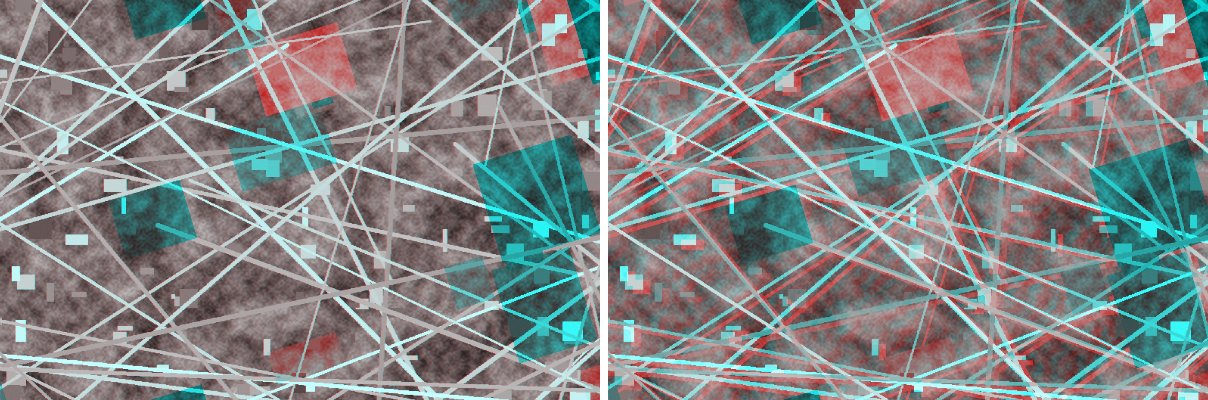
| Red / cyan overlay | Reference in cyan, photo in red, both in grey tones with their exposure evened out | Grey: the images agree. Red / cyan fringes along edges: an offset; the side the fringe is on shows the direction. Solid red or cyan areas: something present in only one image (a new building, a changed field). |
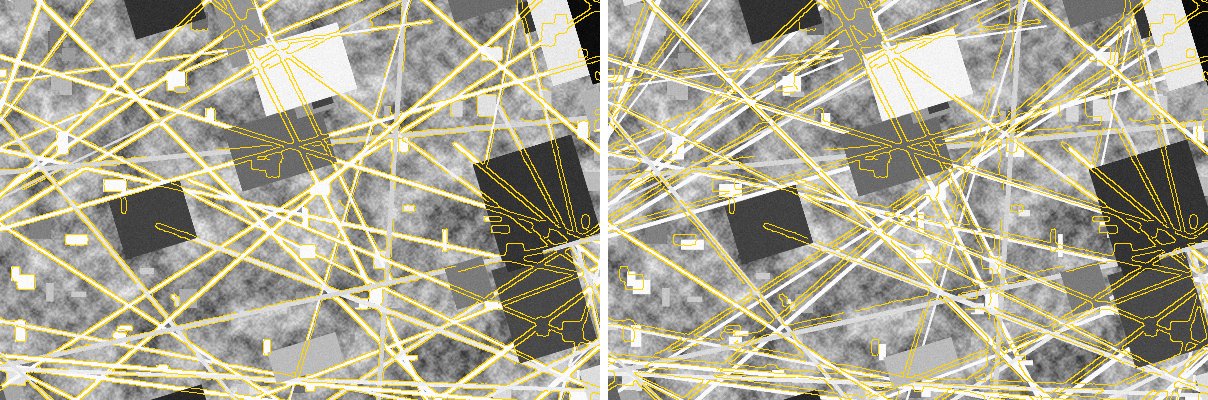
| Edge tracing | Your photo, with the outlines of the reference drawn on it in yellow | The yellow lines should sit on the edges of roads and buildings. A line running beside its edge shows the offset. |
| Blink | Reference and photo alternate about three times per second | Anything that jumps is out of place; the eye notices even very small shifts. |
Mouse and keyboard in the overlay modes
Red / cyan, edge tracing and blink have no black line, so the side of the window no longer decides which image moves:
- drag or scroll moves / zooms the photo;
- Shift + drag / scroll moves / zooms both images, keeping the alignment;
- Ctrl + drag / scroll moves / zooms the reference;
- holding Space shows the reference alone (this works in every mode, including the slider).
A short hint at the bottom left of the view repeats these rules for the current mode.
SIFT and ORB
SIFT (default)
More precise and more tolerant of differences in lighting, season and image quality. About 8 seconds for a 12-megapixel photo.
ORB
About three times faster and often finds more points on sharp, recent imagery. Less tolerant of large differences between the images.
Try SIFT first. If it refuses, try ORB, and the other way round. Both work on greyscale with local contrast equalisation, so uniform differences in brightness or contrast hardly matter. The colour sliders in the window have no effect on matching.
Placement model
The photo is placed with a similarity transformation: move, rotate and scale uniformly (four parameters). That is the same freedom you have in the window, which is what makes “what you see is what gets saved” possible.
A similarity can't shear or stretch the photo, so a bad match can't produce a deformed result. The trade-off: perspective in oblique photos and displacement caused by relief are not corrected (see Limitations).
Safety checks
Auto-refine refuses its own result, keeps your alignment and tells you the reason when:
- the photo barely overlaps the reference (it is outside the map view);
- fewer than 12 consistent matching points were found;
- all matching points sit in one small part of the photo, which would make rotation and scale unreliable;
- the result differs too much from your alignment: scale by more than about 20%, rotation by more than 10°, or a shift of more than 15% of the image. This usually means a wrong match.
Precision
In automated tests auto-refine places the photo within one pixel of the reference, starting from a manual alignment that was off by 5% in scale, 3° in rotation and about 50 pixels. The precision is tied to the reference: with the map zoomed so that one reference pixel is 0.5 m, expect roughly half a metre.
To improve it, zoom the QGIS map closer to the photo before starting, and use the best imagery available as the reference. Remember that the basemap itself has its own positional accuracy.
Tips for good results
- Zoom the map so the photo's area fills most of the view.
- Hide labels and vector layers before starting; they end up in the reference.
- Wait until the basemap is fully loaded; blank tiles in the reference mean nothing to match there.
- Crop scanner borders, frames and film edges from archive photos before using them.
- Align on features that are unlikely to have changed: road junctions, old buildings, rivers, railways.
- After auto-refine, sweep the line slowly across roads and building edges; a correct result makes them continue seamlessly.
- For a final check, use Red / cyan: zoom in with Shift + wheel and look for coloured fringes along roads. Fringes on rooftops only are normal for tall buildings away from the photo centre.
- In Edge tracing or Red / cyan, small nudges of the photo with the mouse show the effect immediately; it is often the quickest way to fine-tune by hand.
- If auto-refine refuses, improve the manual alignment a little and try again, or switch detector.
- For a batch of photos from the same flight, keep the QGIS project open and move the map between photos.
Scenarios
Recent drone or plane photo
The easiest case. Rough alignment, SIFT or ORB, usually hundreds or thousands of points. Check the pixel size in the final message.
Archive aerial photo (decades old)
Align on features that still exist. SIFT copes better with the differences. If too much has changed, auto-refine refuses; you can still save your manual alignment, and zooming in with Shift + wheel helps make it careful.
16-bit or black-and-white scan
Supported directly. The plugin stretches 16-bit data for display and matching; the saved GeoTIFF keeps the original values.
Photo covering a large area
Zoom the map out until the whole photo fits in the view. A closer view gives more precision; auto-refine only needs the part of the photo that falls inside the view, as long as it is a good share of the photo.
Oblique photo
The photo can be aligned in one area, while other parts drift because of perspective. Use the Georeferencer with a projective or thin plate spline transformation for these.
Old maps and plans
The manual alignment works; save it directly. Auto-refine usually refuses because a drawing and a satellite photo have little visual texture in common. A drawn reference (OpenStreetMap, cadastre) helps your eye.
Troubleshooting
| What you see | Why | What to do |
|---|---|---|
AttributeError: 'NoneType' object has no attribute 'write' with a traceback inside numpy | The numpy of the QGIS Python was replaced by one GDAL can't use | Close QGIS, run repair_dependencies.bat |
| “LineUp Raster – missing / mismatched library” | OpenCV is missing or doesn't match numpy | See Installation; the message shows the technical reason |
| Plugin missing from the Raster menu | Not enabled, or the folder has another name | Plugins → Manage and Install Plugins → Installed → tick it; folder name must be lineup_raster |
| “Please set the map rotation to 0°” | The map view is rotated | Set rotation to 0 in the status bar |
| Reference blank or partly empty | The basemap wasn't loaded yet, or no internet | Wait until the map is drawn, start again |
| “…the photo barely overlaps the reference” | The photo is outside the map view | Zoom the map to the photo's area, align first |
| “…only N reliable matching points” or “…all in one small area” | Too little in common: different dates or seasons, water, forest, fields | Align more carefully, try the other detector, zoom closer, or save the manual alignment |
| “…too different from your alignment” | The matching found a placement far from yours | Check your alignment; the refusal is deliberate |
| Result in the wrong place | Project CRS is not the one you expected | Set the project CRS before starting |
| Anything else | – | View → Panels → Log Messages → LineUp Raster has the details; please include them in an issue |
Python dependencies
QGIS has its own Python, with its own GDAL and numpy. The plugin adds one library, OpenCV, and follows a few rules to stay out of trouble:
- numpy and GDAL are used as they come with QGIS. QGIS's GDAL is compiled for that numpy version.
- OpenCV is installed as
opencv-python-headless==4.10.0.84with--no-deps, so pip can't pull in another numpy. This version works with numpy 1 and 2. - Only one OpenCV package should be installed;
opencv-pythonandopencv-python-headlessconflict. - On Windows, pip should run from the OSGeo4W Shell or
repair_dependencies.bat. Inside the QGIS Python Console,sys.executableis QGIS itself. - Change packages with QGIS closed; Windows locks the files of loaded libraries.
install_dependencies.py (run by repair_dependencies.bat on Windows) does all of this: it checks GDAL, repairs numpy only if GDAL can't use it, installs OpenCV only if a working one is missing, and finishes with a check. Running it twice changes nothing the second time.
The plugin itself reads and writes pixels without GDAL's numpy module, so it keeps working even in a Python where numpy was replaced.
Limitations
- Position, rotation and uniform scale only. Perspective of oblique photos and relief are not corrected.
- The QGIS map rotation must be 0°.
- The reference covers only the current map view, rendered up to 3000 px.
- Auto-refine needs visual features in common; uniform areas (water, dense forest, snow) and heavily changed landscapes may not have enough.
- Drawn maps and plans are not matched automatically.
- Tested on QGIS 3.34 (Linux) and 3.40 (Windows); macOS hasn't been tested.
Lens correction for wide-angle and drone cameras, more comparison modes and an error map, a perspective model and a “ground only” option that follows the streets are planned; see the roadmap.
Glossary
- Georeferencing
- Giving an image map coordinates, so that it sits in its real place on the map.
- Reference
- The image with known coordinates the photo is matched against; here, the rendered QGIS map view.
- CRS
- Coordinate Reference System, for example WGS 84 (EPSG:4326) or Stereo 70 (EPSG:3844).
- GeoTIFF
- A TIFF image that also stores its coordinates and CRS.
- Feature / keypoint
- A small distinctive spot in an image (a corner, a blob) that can be recognised in another image.
- SIFT, ORB
- Two methods that find features and describe them so they can be paired between images.
- CLAHE
- Contrast Limited Adaptive Histogram Equalization: evens out contrast locally, which helps compare images taken in different conditions.
- RANSAC
- A method that finds the placement most matching pairs agree on, and ignores the pairs that disagree.
- Similarity transformation
- Move + rotate + uniform scale. Shapes keep their proportions.
- Ground control point (GCP)
- A point whose position is known both in the image and on the map.
- North-up
- An image whose rows run east–west and columns north–south, the form most GIS software expects.
- Orthorectification
- Correcting an image for camera perspective and terrain height; beyond the scope of this plugin.
Version history
| Version | Changes |
|---|---|
| 0.4.0 | Compare modes: red / cyan overlay, edge tracing and blink. Hold Space to see the reference alone. In the overlay modes, drag moves the photo, Shift both images, Ctrl the reference. |
| 0.3.0 | First public release, renamed from “Auto Georeference” to LineUp Raster. English documentation, installation guide and this help site. Dependency installer that repairs numpy only when needed. Help entry in the plugin menu. |
| 0.2.1 | Works even when numpy in the QGIS Python was replaced; clear message for missing libraries; Windows repair script. |
| 0.2.0 | Auto-refine starts from the manual alignment and is shown before saving; similarity model; safety checks; GDAL reading; sharper reference; free pan and zoom. |
| 0.1.0 | First version: comparison window and feature matching. |
The design decisions and lessons learned are described in PHILOSOPHY_AND_DEVELOPMENT.md.
Credits & license
LineUp Raster was written by Radu Andrei & Claude. It is released under the MIT License.
It builds on QGIS, GDAL, OpenCV and numpy. Basemap imagery belongs to its providers and is subject to their terms.
Suggestions and bug reports are welcome on GitHub.